
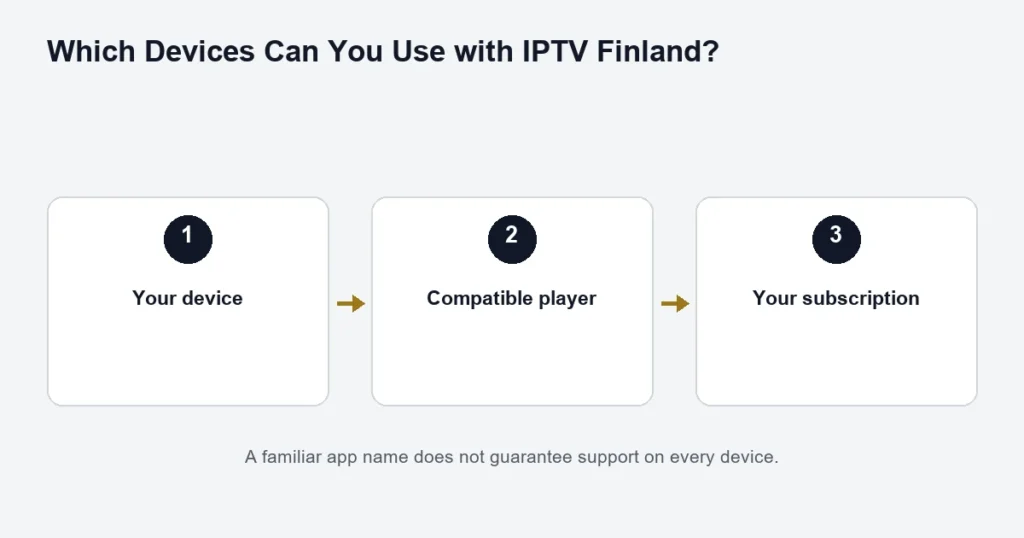
Which Devices Can You Use with IPTV Finland?

Check the operating system, app availability and controls on your exact device before choosing a player.
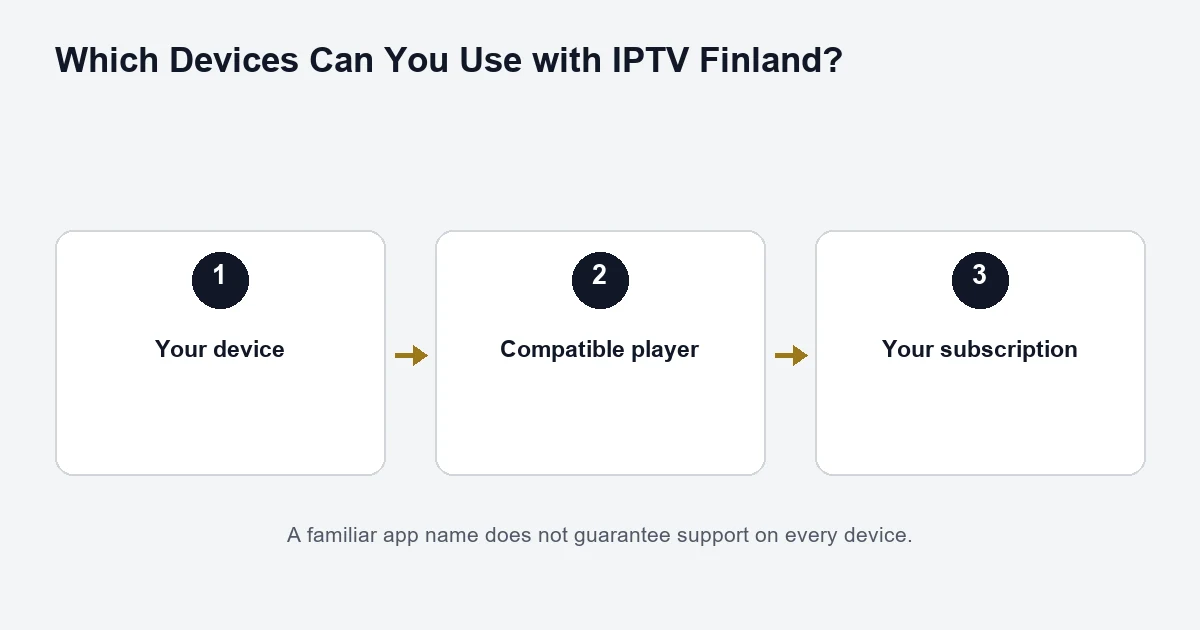
Diagram linking a device, compatible player and streaming subscription

Start with your device’s model and operating system. A television, streaming box and phone may need different editions of the same player. The app must be available for your device and accept the login format supplied during setup.

Samsung and LG smart TVs

Compare the native TV and external-player routes, then use the dedicated Samsung or LG setup checks.

Use the TV’s own app store and search for the agreed player. On Samsung, check Smart Hub and the Samsung account requirements. If the app is missing, check compatibility with the exact TV model; installing an Android phone app is not an alternative for a Samsung TV. Samsung’s app-installation guide explains the store workflow.

On LG, check the TV’s internet connection, account, available storage and Services Country setting before assuming a missing app is a subscription problem. LG’s installation guide covers these checks. Keep the country setting appropriate for where you use the TV.

Android TV, Google TV and Android boxes

On Google TV, find the player through the Apps area or search and open its store listing before installing. See Google’s installation instructions. Choose an edition designed for television and remote-control navigation.

An Android box is not necessarily an Android TV device. Some boxes use a tablet-style interface, and a touch-oriented app can be awkward with a remote. Check the operating system, store access, remote navigation and video output on the exact box before buying another device.

Choose the platform-specific guide: Android TV, Google TV or an Android box.

Fire TV Stick

Identify the exact Fire TV model and software first. Do not assume every generation supports the same applications or installation method. Search the Amazon Appstore on that device for the agreed player and check compatibility before paying for an app. Send support the model name if the player is absent; avoid following an old installation tutorial intended for different hardware.

The Fire TV Stick guide separates model and operating-system checks.

Apple TV

Apple TV 4K and Apple TV HD support app downloads through the App Store. Older Apple TV models have different capabilities, so the name “Apple TV” alone is not enough to confirm setup. Use Apple’s app-download guide, then confirm that the player accepts your supplied credentials.

Read the Apple TV setup guide for app and output checks.

Phones, tablets, Windows and Mac

For a phone or tablet, choose the correct iOS, iPadOS or Android edition from the device’s official store. A purchase on one platform may not cover another. Check touch controls, audio and subtitle selection, and whether playback continues when you switch apps.

On Windows or Mac, obtain the player from its verified publisher or the system’s app store. Match the supported operating-system version. If a playlist works on the computer but not the TV, record the different app versions and networks rather than replacing every setting at once.

Use the dedicated phone and tablet guide for mobile viewing, or Windows and Mac checks for desktop playback.

Information that makes setup easier

  • Exact device model and operating system.
  • Player name, publisher and version.
  • Whether you use Wi-Fi or Ethernet.
  • The precise error message, without exposing your password.

Next, read the player-app guide and the existing installation instructions. For several screens, check your simultaneous connection allowance.

A compatibility check you can finish before buying

Write down the model printed in the television or box settings, rather than relying on the name on its front. Add the operating system, available software update and the player you intend to use. This gives you a small, useful checklist to compare with the app listing. A product family can span several years of hardware, so someone else’s successful installation is only a starting point.

Next, check how you will control the player. On a television, you need to reach search, the programme guide, audio and subtitle controls with the supplied remote. On a tablet, check that those controls remain usable in landscape and portrait orientation. On a computer connected to a television, decide whether you are comfortable using a mouse and keyboard from your seat.

Keep the screen and the streaming device separate

If an external box connects through HDMI, the app runs on the box. The television provides the picture and sound. This can give an older television another installation route, but it does not upgrade the panel’s resolution or guarantee support for every audio format. Check the box and display together before paying for equipment.

For example, a household might have a Samsung television in one room and an Android TV box in another. Those are two separate app environments, even if both screens show the same service. Use the Samsung store checks for the first and the box identification guide for the second.

Run a small acceptance check

  1. Open the player from the device’s normal home screen.
  2. Load the supplied account using the supported login method.
  3. Play an available channel and return to the channel list.
  4. Find a programme you recognise and inspect its audio and subtitle options.
  5. Open the guide, then return to live playback.
  6. Close the player and reopen it to confirm you understand how the account is selected.

Keep the check representative of your own viewing. If Finnish subtitles matter, test a programme with that option; a menu translated into Finnish does not establish subtitle availability. If the television is in a room with weaker Wi-Fi, test there rather than beside the router.

When compatibility is only partly working

An app can install and still be awkward to use. Describe the exact boundary: installation fails, the login screen cannot be controlled, the list is empty, or a specific programme will not play. Each observation points to a different question. Replacing the entire setup before identifying the boundary can create more uncertainty.

For a working player with a blank guide, use the EPG checks. If a second screen causes interruptions, read the simultaneous connection explanation. Neither issue proves that the television itself is incompatible.

Device questions

Does the same player licence cover every platform?

Do not assume so. A licence, device registration and streaming subscription have different purposes. Check the publisher’s terms for the particular edition before buying another activation or moving an existing one.

Should I replace a working TV to get Premium?

Choose around the content and picture you actually use. A larger catalogue and a 4K-capable display are separate considerations. The 4K playback guide explains the complete picture path; buying a tier does not change a screen’s hardware.

What should I record when asking for help?

Keep the model, operating system, player version and a short description of the failed step. A screenshot can help if it shows the error, but remove account credentials first. This information is more useful than a general report that a smart TV does not work.

Chat with usUsually replies quickly
Scroll to Top