
IPTV Finland on Fire TV Stick: Check Model and OS First
Fire TV devices do not all use the same operating system. Confirm app support for your exact Stick before following a setup guide.
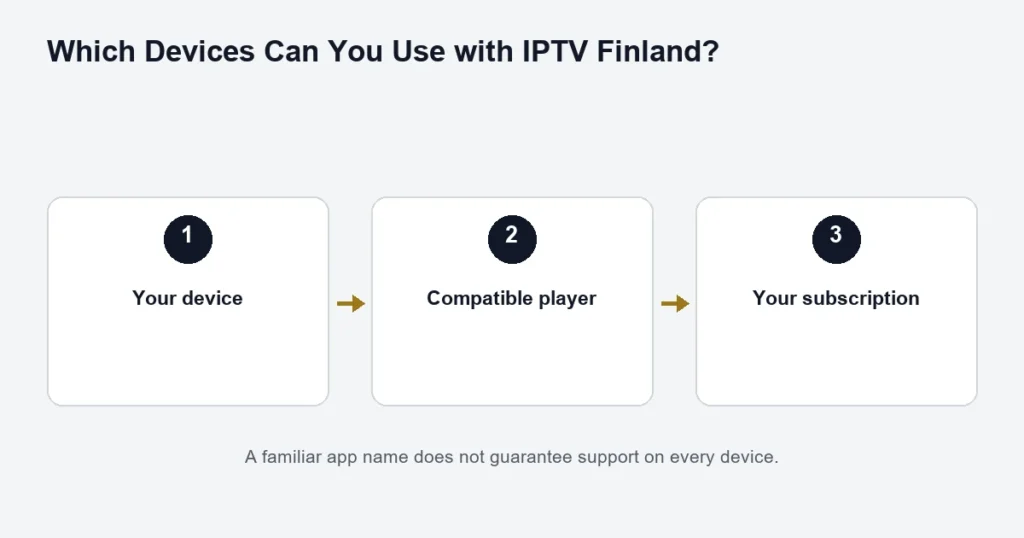
The exact Fire TV Stick model matters. Amazon documents both Fire OS and Vega OS devices; instructions or installers for one platform should not be assumed to work on the other.
Identify the device before installing
Read the model and software information in the device settings. Amazon’s platform overview lists models and operating systems. Search the Amazon Appstore on that device for the agreed player, checking its publisher and compatible edition.
If a familiar app is absent
Do not start by copying an old downloader code or changing security settings. Ask the player publisher whether it supports the model and operating system you have. The same Fire TV brand name does not establish app compatibility across generations. This guide does not provide an unverified sideloading link.
Check the full viewing setup
Use the device’s intended power supply and confirm the selected TV input. During setup, distinguish a remote-control or app issue from a stream that fails after successful sign-in. Keep the error wording and player version; those details are more useful than repeatedly reinstalling.
For the subscription fields, use the installation guide. Compare other compatible-device routes before buying replacement hardware. No individual channel, resolution or player is guaranteed merely because a Fire TV Stick supports streaming.
Identify the Fire TV device rather than the television
Record the Fire TV model and software information from its settings. The television attached to it provides the display, while the Fire TV device provides the app environment. This distinction prevents advice for a Samsung or LG native app from being applied to the wrong system.
Also check which remote and television input you use. If the home screen does not appear, resolve the device-to-display setup before investigating IPTV credentials. A blank input and an account login error are different stages of the process.
Use a supported player source
Search the store available on the actual Fire TV device for the agreed player. Inspect the publisher and edition. Availability can vary, so a listing seen on a different device is not a universal promise.
This guide does not supply an APK or a downloader code. A file from an unrelated source can be a different edition or publisher, and its presence online does not establish support. If the required listing is unavailable, identify that limitation before choosing another route.
Check the television interface before buying a licence
Use the remote to inspect the login fields and main controls. Confirm that you can select a source, return to the list and open the guide without a touchscreen. A player designed for another input method may be inconvenient even if it opens.
The player guide explains why an app licence and subscription access are separate. For a Premium player benefit, confirm the applicable edition and device before purchasing an additional activation.
Set up access in a controlled sequence
- Open the confirmed compatible player.
- Choose the login mode matching the supplied details.
- Review copied fields for spaces or missing characters.
- Save a recognisable account entry.
- Allow the available list to load.
- Test one source before opening another household screen.
If the app asks for a different input format, use the installation guide to identify the mismatch. Do not improvise a URL or substitute a store-account password for service access.
Test where the device will normally be used
A streaming device often sits behind or near a television. Test the finished setup in that position rather than assuming a successful check elsewhere represents the normal room. Keep the network and equipment arrangement consistent while comparing results.
If playback buffers, record whether it affects every source or one programme. Stop unused streams and compare one change at a time. Moving the device, changing the player and selecting a different programme together makes it difficult to identify what helped.
Find the controls needed for Finnish viewing
Open the audio and subtitle menu on an available programme with the relevant options. The Fire TV interface language does not supply missing programme tracks. If the required language is absent, note the channel or title and the selected version.
Check guide readability from your normal seat. If schedule times are wrong while playback works, use the EPG checks before erasing the account. A guide issue is not automatically a failure of the device.
Keep the picture-quality question separate
Identify the exact Fire TV model, television and selected source before assuming a 4K limitation. The 4K guide follows the whole output path. A Premium selection does not change the capability of an older display or make every feed 4K.
If a receiver or soundbar sits between the device and television, include it in your notes. Picture and audio failures can have different causes, so describe whether the issue is black video, silence, wrong language, reduced detail or buffering.
Fire TV questions
Can I use the TV brand’s app instructions?
Use Fire TV instructions for an app running on the Fire TV device. Native television apps are a separate installation route, even though both appear on the same screen.
Does installing several players add connections?
No. The simultaneous allowance belongs to the selected service plan. Stop unused playback and follow the supplied account arrangement.
Should I factory-reset for a single failing channel?
Start with a narrower comparison. Try another available source in the same player and record the result. A reset can remove unrelated accounts and settings without proving the cause.
What if a player asks for an activation payment?
Confirm the exact publisher, edition and any applicable plan benefit before paying. A subscription receipt is not automatically an app-store licence.
How do I report an installation problem clearly?
Include the Fire TV model, software version, player name and the store’s exact message. Keep credentials private. If installation succeeds but login fails, describe that later step separately so support can focus on the correct boundary.
Distinguish the device waking from the app resuming
When returning to a Fire TV setup, observe whether the home screen appears first, the player opens, or an old programme resumes. If playback fails only after returning from another input, describe that sequence. A fresh app launch and a resumed session are different tests. Keep the programme and account the same while comparing them, and note any message shown. Do not conclude that the subscription expired merely because a resumed picture is frozen. A clear sequence gives the next troubleshooting step something reproducible to examine while preserving the working login and avoiding an unnecessary full-device reset.
What should I check after moving the device?
Confirm the selected television input, power arrangement and network connection before reopening the player. Keep the app and saved account unchanged for the first comparison. If the home screen appears but playback differs, record the new location and exact source. Moving equipment can change several practical conditions, so avoid adding an app reinstall at the same time. A step-by-step comparison preserves the previous working setup as a reference and makes the enquiry about the move more precise than a general claim that the account stopped working.