
IPTV Finland on Samsung TV: Store and Player Checks
Check your Samsung model, Smart Hub access and the exact player listing before entering subscription details.
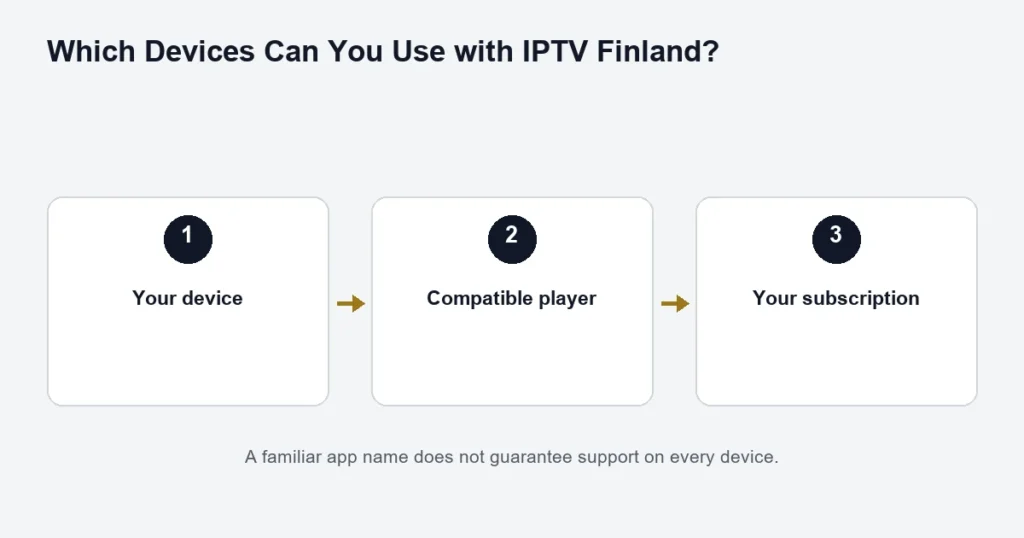
On a Samsung TV, begin in the television’s own app interface and look for the agreed player. If the app is absent, first check the model and software version. A similarly named Android download is not a substitute for a Samsung TV application.
Before you search
Make sure the television is online and the Samsung account requirements for its Smart Hub are satisfied. Search for the exact player name, inspect its publisher, and install only a compatible listing. Samsung’s official app guide covers this workflow; that guide is for Canadian models, so Finnish menu wording and availability may differ.
If the player cannot be found
Record the full model code and the country/store setting instead of repeatedly resetting the TV. Do not change the store country merely to force an unsupported listing. If the app publisher cannot support the model, consider a compatible external player through HDMI after checking that device separately.
After installation
Follow the login method shown in the app. Some players use device registration, while others accept account fields directly. A successful player activation does not supply subscription channels. Check Finnish or Swedish audio and subtitles on the actual programme you need.
See the Hot Player guide if that is the agreed app, then use the installation guide for subscription login troubleshooting. The smart-TV overview explains the external-player alternative.
Record the Samsung model before choosing the app
Use the full model information in the television’s settings or on its label. A short retail name may cover several model years. Keep the software version with it so a support enquiry refers to the actual television, not only the Samsung brand.
Also record whether you are using the TV’s own home screen or an external device connected to it. If the player runs on a Fire TV device or Android box, the box’s app store is the relevant one. The Samsung television remains the display, but it does not determine that external player’s installation procedure.
Use the television’s supported store route
Samsung’s app-management guidance describes installing and managing apps through the TV interface. Menu wording and availability can differ by model and market, so follow the controls shown on your television.
Search for the exact agreed player and inspect its publisher. If the listing is missing, keep that result rather than downloading an unrelated file from a search advertisement. A familiar app name on a phone is not proof of a Samsung TV edition.
Do not change several store settings at once
If the television is not signed in or its connection is incomplete, address that specific issue first. Record the existing settings before making a publisher-supported change. Changing region, account and network together can leave you unsure which change affected the result.
Prepare for the player’s own activation
Some players have a separate licence or device-registration stage. Read the screen carefully and confirm the app edition before paying. Subscription access and player activation serve different purposes, even when both involve a code or account screen.
If the selected Premium benefit applies to your setup, ask which player and device it covers. The IBO Player guide and Hot Player guide explain what to verify without claiming every similarly named app is equivalent.
Enter access using the mode shown by the player
- Open the installed, confirmed player.
- Identify whether it uses separate server fields or another supported setup route.
- Follow the access instructions supplied for your account.
- Check copied fields for extra spaces before saving.
- Allow the player to load its available list.
- Try one relevant channel before opening another device.
If the screen asks for something you were not supplied, do not invent a playlist address or substitute an app-store password. Use the login guide to identify the mismatch and ask for the correct method.
Check remote control and language choices
Find the guide, return to live playback and open the audio or subtitle menu using the Samsung remote. These controls may differ between players. Test them during setup rather than waiting until the beginning of a film or match.
For Finnish or Swedish viewing, inspect the track options on the particular programme. A Finnish television menu does not ensure Finnish subtitles in the stream. If a track is absent, note the source and programme before changing the television’s overall language settings.
Describe a failure precisely
The app is unavailable
Supply the model, software version and exact player name. This is a store or compatibility question. It is different from an account that saves but cannot play a channel.
The app opens but the list is empty
Confirm the saved account and supported input format. Do not repeatedly buy another app licence to solve an unidentified subscription input problem.
Only one programme fails
Try another available source without changing the account. Record the failing channel or title and time. Reinstalling the entire player can erase useful settings without establishing whether the source is the issue.
When an external player is worth assessing
If the required native app does not support your model, read the native-versus-external route comparison. Check a specific device’s store and controls before purchasing. Adding a box does not change the panel’s native resolution or automatically confirm every Premium picture feature.
Samsung questions
Can I follow Android TV instructions?
Only if you are actually using an Android TV device. The Samsung TV’s native app environment is a separate installation route.
Will resetting Smart Hub guarantee the player appears?
No such guarantee is made here. Follow Samsung or the app publisher’s model-specific guidance, and understand what settings may be removed before resetting.
Does one successful channel prove the whole setup?
It confirms that particular playback check. Also inspect the controls, language options and guide functions you need. The guide troubleshooting page addresses schedule issues separately.
What should I save after setup?
Keep the player name, version, television model and order reference. Store credentials privately. This baseline helps if a later app or television update changes the behaviour.
Check native TV and external-box accounts separately
A Samsung television can contain a native player while an attached device contains another. If both are used, record which route holds the working account. Selecting an HDMI input does not open the television’s native app, and opening Smart Hub does not select the external box’s saved player. This distinction is useful when one route works and the other is empty. Test each by naming the app and device, then follow the corresponding setup instructions. Avoid copying an activation code between platforms without confirmation; a similarly named player can have a different edition or registration scope on the second device.