
IPTV Finland on Android TV: Choose the TV Edition
Use a player designed for television and remote navigation, then enter the subscription login in the supported format.
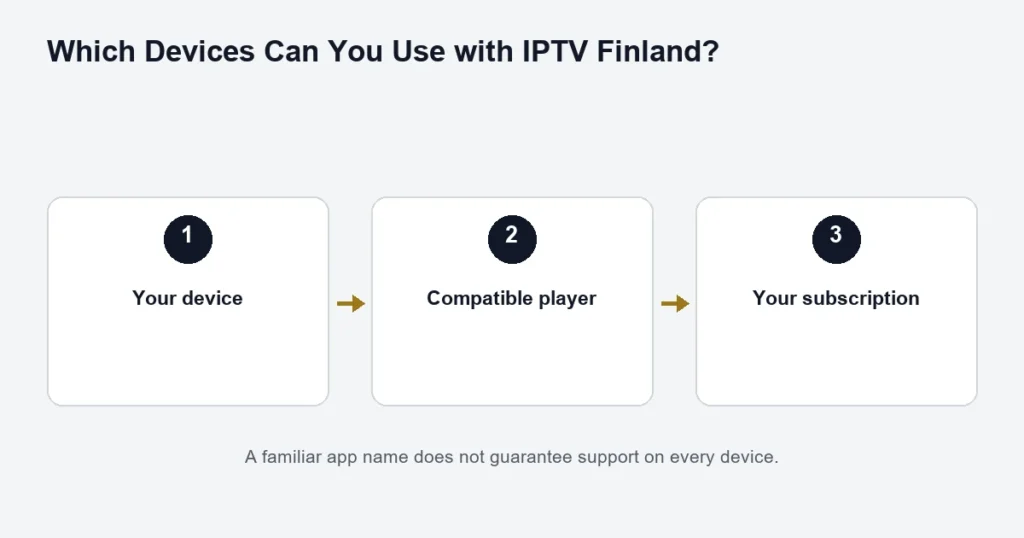
Android TV needs the television edition of a compatible player. A phone app with the same name may expect touch input, display differently or be unavailable in the TV store.
Install for the platform you have
Identify Android TV in the device’s system information, then use its app store to find the exact player and publisher. Google explains the relationship between Google TV and Android TV. Their interfaces can differ, so use the Google TV instructions if your home screen uses that interface.
Check remote navigation
Move through the channel list, open the guide and return to playback using the remote. Check that the login keyboard and subtitle controls are reachable. A device accepting an installation file does not by itself establish a usable television interface.
When sign-in works but playback does not
Separate an empty list from an individual channel failure. Verify the account fields and the selected playlist first; then note whether other available channels play. Check whether another household device is already using the connection allowance before blaming the TV app.
TiviMate is a player to assess specifically for Android TV, not a source of channels. If your box runs a tablet-style Android interface, use the Android box checks instead of assuming it is Android TV.
Confirm the device really uses Android TV
Open the system information and record the model and operating system. A television interface and a box running a tablet-style Android interface are not necessarily the same platform. The distinction affects which app edition is appropriate and how comfortably it can be controlled.
If your device presents Google TV, use the Google TV guide for the interface-specific checks. If it is an independently supplied Android box, the box identification guide helps you avoid assuming television compatibility from the word Android alone.
Choose an edition designed for a remote
Inspect the store listing on the actual device. Confirm the publisher, supported platform and login methods before installing. A touchscreen application can technically open while still making basic television controls difficult to reach.
Test the selection highlight, back button, on-screen keyboard and guide navigation. If the account field cannot be selected with the remote, that is a usability problem worth resolving before paying for an app licence. Installing several unrelated players does not necessarily make the original edition suitable.
Set up one account carefully
- Open the confirmed television player.
- Choose the login mode that matches the supplied access details.
- Enter each field without extra copied spaces.
- Give the saved entry a recognisable label if supported.
- Wait for the channel and programme information to load.
- Play one available source before adding further devices.
If the player asks for a different kind of input, stop and confirm the method. Do not construct a guessed address from credentials. The installation guide explains separate server fields and why an app account is different from service access.
Test the features used in everyday viewing
Try opening the guide, moving through a short list and returning to playback. Find the audio and subtitle controls on a relevant programme. For Finnish or Swedish viewing, inspect the actual tracks rather than assuming the device’s interface language determines them.
If the player offers favourites, assess whether a short list helps the household. Keep the full source identifiable so a problem report can name the actual channel rather than only a custom label. Navigation preferences should not obscure which programme you are testing.
TiviMate and other player choices
The TiviMate guide addresses that player’s platform and subscription boundaries. Other compatible editions may offer a different interface. Compare the specific controls and supported inputs you need rather than assuming one name is universally best.
Any app licence is a separate question from the IPTV term and screen allowance. Before paying for an activation, confirm that it belongs to the correct publisher and edition and whether a stated plan benefit applies.
When something fails after installation
Empty account or channel list
Check the selected saved entry and the input method first. An old trial entry can remain alongside a new account. Confirm which one is selected instead of repeatedly re-entering details into different modes.
Guide entries are missing
If playback works, keep that fact and check the guide separately. The EPG troubleshooting steps cover clocks, refreshes and source-specific discrepancies.
Playback changes when another screen starts
Check the purchased connection allowance and supplied setup instructions. Count active playback, including a player left running elsewhere. A television app licence does not increase the service’s simultaneous allowance.
Keep updates and troubleshooting distinguishable
Record the working app version and device software. If behaviour changes after an update, note that sequence rather than assuming the subscription changed. Follow the publisher’s supported troubleshooting before resetting the whole device.
A factory reset can remove multiple accounts and preferences. For a single-channel problem, a narrower comparison is usually more informative: try another available source in the same player and record the difference.
Android TV questions
Does the television brand decide the player?
The operating system and specific store listing matter more than the brand alone. Confirm the platform and edition on the device itself.
Can I use a phone APK if the TV listing is absent?
This guide does not provide an unverified sideloading route. First establish whether the publisher supports the television. A downloadable file is not proof of remote-control compatibility.
Does Android TV guarantee 4K from every source?
No. Check the source, device and display through the 4K guide. The platform name alone does not establish the entire picture path.
What information should I keep?
Save the model, app edition, working input method and order reference. Keep credentials private. Those details give future troubleshooting a clear starting point without exposing access.
Test the selection highlight, not only the video
A television player needs a visible focus or selection state as you move through menus. During setup, check that you can tell which field, channel or control the remote will activate. This is particularly important on a login screen or a crowded guide where several items look similar. If the highlight disappears or a button cannot be reached, record the exact screen and app edition. A source playing successfully does not resolve that navigation limitation. Assessing the controls before purchasing a licence helps establish whether the player is suitable for the people who will actually use it, including anyone who finds small text or ambiguous focus difficult.
What if a remote button performs an unexpected action?
Record the player screen and button involved before remapping controls or changing several settings. The device’s home screen and the player can use controls differently. Test whether the same action is repeatable in the app, and consult the edition’s supported control guidance. A navigation issue should be described separately from video playback, because a working source does not prove every remote interaction is suitable. Resolve the specific control the household needs rather than adding an unrelated touchscreen app as a workaround without checking television support.