
IPTV Finland on a Smart TV: Native App or External Player?
Identify the television platform before choosing between its own app store and a separate streaming device.
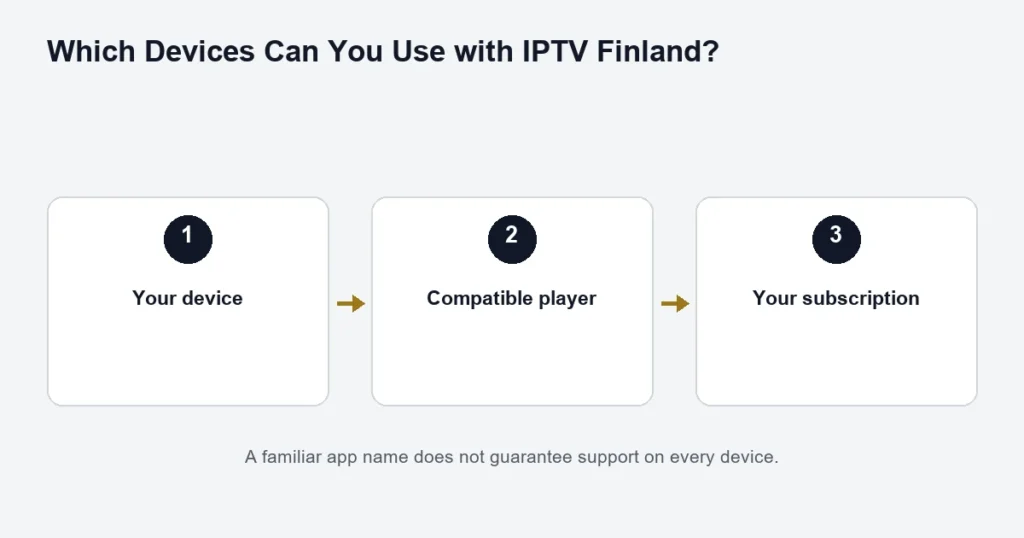
A smart TV needs a compatible player; the label “smart” is not enough to establish support. Start with its model number, year and operating system. Two televisions from the same brand can offer different stores and app versions.
Choose the installation route
A native TV app keeps the setup to one remote and one device. Check that the exact app is present in the TV’s store before purchasing its licence. If it is absent, a separate compatible streaming box connected by HDMI may be an option, but it adds another device to check and configure.
Do not assume a phone installer works on a television. Samsung and LG platforms are not interchangeable with Android TV. Read the dedicated Samsung or LG instructions, or identify a television running Android TV.
Check controls before settling in
Use the remote to open a channel, return to the list, select audio or subtitles and reach the programme guide. A player that opens successfully but needs unavailable touch controls is not a finished TV setup. Keep the app publisher and version with the model details when asking for help.
The player comparison explains licence and login differences. For an external box, confirm the TV’s input and the box’s output separately; the television brand does not determine the app installed on the box.
Identify what makes the television smart
The operating system determines the app route. Start in the television’s information or support settings and record the model and software version. The brand printed on the frame is useful, but it does not specify the exact apps available on that model.
This matters when advice comes from another household. A player installed on a recent television may be absent from an older model with the same brand. Likewise, an external box attached to a television can make a demonstration look like a native TV app when it is actually running on different hardware.
Compare the two installation routes
Use an app on the television
This route can keep the everyday controls straightforward because the TV itself runs the player. Check the store listing, publisher and login method before buying any app activation. Then confirm that the remote reaches the features you need, especially search, guide navigation and subtitle selection.
The dedicated Samsung guide and LG guide cover the store checks for those platforms. Avoid applying an Android installation procedure to either one merely because all three are called smart TVs.
Use a compatible external device
An external box supplies a separate app environment through an input such as HDMI. You need to check that device’s operating system, remote and output as well as the television’s input. It can offer another route when a native app is unavailable, but it is not an automatic recommendation to buy hardware.
Consider the practical details: where the box will sit, how it receives power, how you will select the correct television input and which remote controls the player. A technically compatible setup can still be inconvenient if nobody can tell which remote performs which action.
Test the controls from the sofa
- Open the app without using a phone or keyboard.
- Find the saved subscription account.
- Move through the channel list and open a programme.
- Open and close the guide.
- Locate audio and subtitle choices.
- Return to the home screen and stop playback.
Check these steps at your normal viewing distance. Small text or a login interface designed for touch can be frustrating on a large screen even if the video itself plays. The player comparison helps frame those usability questions.
Keep app activation separate from channels
A player may display a licence screen before it accepts the supplied access. Completing that activation does not itself provide the subscription catalogue. Conversely, having service access does not prove that any app licence on the television has been purchased.
For the Premium player benefit, confirm the exact app and applicable device. Avoid buying a similar-looking app and expecting it to count as the same product. Keep the publisher name and edition in your setup notes.
Picture and sound checks
Start with a known available source before changing display settings. If using an external box, note whether sound goes through the television, soundbar or receiver. A missing audio track and a muted output are different problems, so inspect both separately.
A 4K television does not establish that every selected stream is 4K. The 4K guide explains the complete chain. If the screen is older, choose around confirmed compatibility and the picture it can display rather than assuming the subscription changes its hardware.
When a native app stops working
Record whether the app fails to open, the account list is empty or just one programme fails. Check the model and player version before resetting the television. A factory reset can remove unrelated settings and accounts without identifying the cause.
If a publisher recommends reinstalling, make sure you understand what saved setup information may be lost. Keep access details private and follow the installation guide for the supported login method afterwards.
Smart-TV questions
Can I install a phone app on any smart TV?
No universal compatibility is established by the app name. Use the television’s supported store and an edition intended for that platform. Touchscreen controls may also be unsuitable for a remote.
Does an external box improve the panel resolution?
No. It changes the playback device, not the television panel. Check both parts when assessing picture quality.
Do I need more connections because I use a box?
Connection choice concerns overlapping playback. One box playing through one television is not automatically two simultaneous streams. Follow the supplied account instructions and the connection examples.
Which route should I choose first?
Check the route already available on your equipment before buying more. Confirm the required player, controls and account input. If the native route is unsupported, assess a specific external device rather than selecting one only from a generic compatibility claim.
Choose the route that the household can repeat
Before deciding between a native app and an external player, ask another regular viewer to open the programme using the normal controls. Note where they need help: choosing the input, finding the app, selecting the account or reaching subtitles. That small usability check can reveal more than a specification comparison. Keep the route simple enough for everyday use and do not add hardware merely because it is available. If an external device is necessary for compatibility, label its input clearly through the television’s supported settings and retain a short private setup note. The goal is a repeatable viewing routine, not simply a one-time successful installation.