
IPTV Finland on Windows and Mac
Choose a desktop-compatible player and separate computer, login, display and network issues.
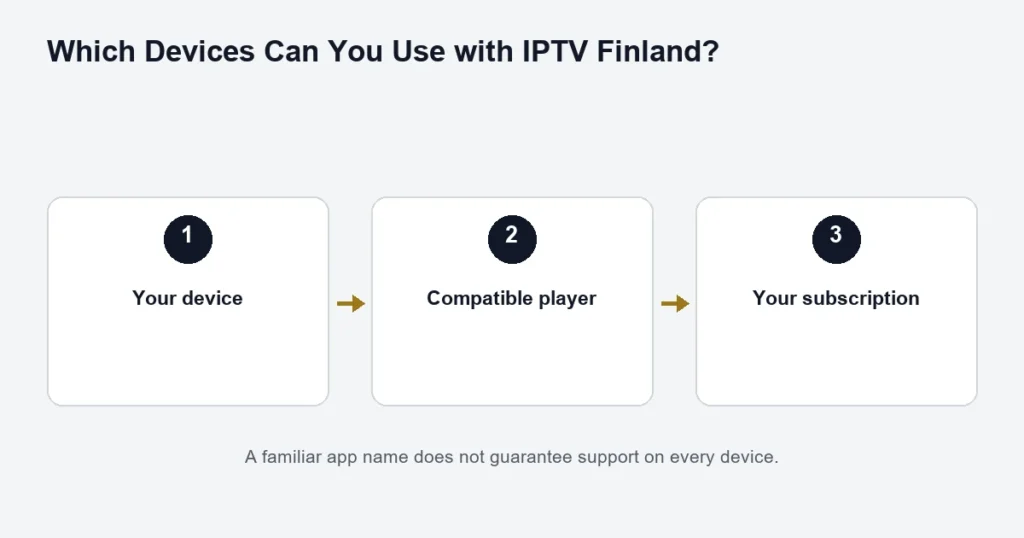
For Windows or Mac, obtain a compatible player from its verified publisher or your system’s app store. Check its operating-system requirements and supported login format before installing. A similarly named mobile app is not necessarily a desktop version.
Enter the right kind of details
A player may accept a playlist URL or separate server, username and password fields. Use the method supplied for your subscription. Do not turn account fields into a guessed playlist address or paste a full playlist into a server field that expects only a host.
When connecting the computer to a TV
Check the selected screen and audio output in the computer’s settings. A stream visible on the laptop but silent on the television may be an output-selection issue. Keep this separate from whether the player itself can decode the source.
Keep troubleshooting controlled
Record whether login fails, the list is empty, or playback fails after a channel is selected. If comparing Wi-Fi and Ethernet, keep the same player and source. Avoid switching several settings at once, because that makes it harder to identify what helped.
Use the installation guide for account fields and the EPG guide for schedule issues. Stop the computer’s playback before starting another device if your connection allowance is already in use. Never include private credentials in a public troubleshooting screenshot.
Choose a desktop player by its supported input
Begin with the operating system and the access format supplied to you. A Windows player, a Mac edition and a browser-based interface can be different products. Check the publisher’s current supported download rather than choosing from a generic software directory.
If you received separate server fields, confirm that the player accepts that mode. A player designed around playlist files may need a different supported method. Do not construct an undocumented address from private credentials simply to make an input field accept something.
Keep installation and account setup separate
First establish that the software installs and opens on the computer. Then inspect its account inputs. An installation error belongs to a different stage from a saved account with an empty list. Recording the stage prevents repeated changes that do not address the actual failure.
The player comparison explains licences and editions. An app publisher’s sign-in is not automatically the streaming account, even when both use familiar username and password fields.
Enter the supplied access carefully
- Open the verified compatible player.
- Select the supported login mode.
- Copy each supplied field into its corresponding input.
- Inspect leading or trailing spaces and preserve the supplied server format.
- Save the account with a clear label.
- Try one available programme before changing other settings.
Desktop copying makes it easy to include an extra line break or space. Review the fields privately rather than posting them in a screenshot. Use the setup guide if the requested input does not match what you received.
Assess the way you will actually watch
If the computer is on a desk, check the normal window and full-screen controls. If it is connected to a television, decide how you will select programmes from your seat. A keyboard and mouse can be comfortable at a desk but inconvenient across a room.
Check which display and audio output the computer is using. A picture appearing on the television with sound still playing through the laptop is an output-selection issue to investigate separately from the subscription.
Keep work and viewing activity distinguishable during a test
For a controlled playback check, avoid changing several computer tasks at once. Note whether a large download or another application was active when the symptom appeared. The purpose is to make the test repeatable, not to claim that any particular background process is always responsible.
If one title fails while another plays, record the title and edition. If the player itself becomes unresponsive before playback, note that earlier boundary. Reinstalling the operating system is not a proportionate first response to a single-source issue.
Language, guide and library checks
Open a relevant programme’s audio and subtitle menu. A computer’s system language is different from the tracks supplied with the stream. For a series, identify the season and episode; for a live channel, record the programme and time.
The library checklist covers title editions. If the guide is empty or shifted while video works, use the EPG troubleshooting steps instead of erasing a working account.
Using an external display
Check the computer, adapter if present, cable path and television input as a complete arrangement. A high-resolution monitor on the desk does not establish what an attached television receives. Use device-specific documentation for output settings.
The 4K guide separates source resolution from device and display capability. A Premium plan does not change the computer’s hardware or guarantee every programme in 4K.
Windows and Mac questions
Does a Windows licence cover the Mac edition?
Check the publisher’s terms. A similar app name does not establish a shared licence or identical features across operating systems.
Can I use a web browser instead of a player?
Only if a supported browser route has been supplied or documented for your access. This guide does not invent a web-player address or recommend entering credentials into an unrelated site.
Does using two monitors require two connections?
Count actual simultaneous playback sessions and follow the supplied account instructions. The number of connected displays alone does not describe the service usage. The connection guide explains the distinction.
What if the laptop sleeps during playback?
Record the sequence and review the computer’s supported power settings. Do not assume every player overrides sleep behaviour. Keep any change proportionate to the intended use.
What details help with a desktop error?
Provide the operating system, player edition, failed step and whether other sources work. Crop private account fields from screenshots and keep the order reference available for the established support route.
Before committing to a longer term
Test the computer arrangement you will actually use, including the external display and audio route if relevant. The free-test information explains the one-connection check without treating it as a guarantee of every future programme or setup.
Check the output destination before changing accounts
When a laptop connects to a television, note which display contains the player window and which device produces the sound. Test a normal computer sound separately if you need to distinguish the audio route from the selected programme. If the player picture is visible only on the laptop, investigate display arrangement before changing service credentials. Keep any adapter or receiver in the setup note because it is part of the path. This approach makes a desk-to-television problem specific: screen placement, audio destination and source playback can be checked independently instead of treating every missing picture or sound as an account failure.