
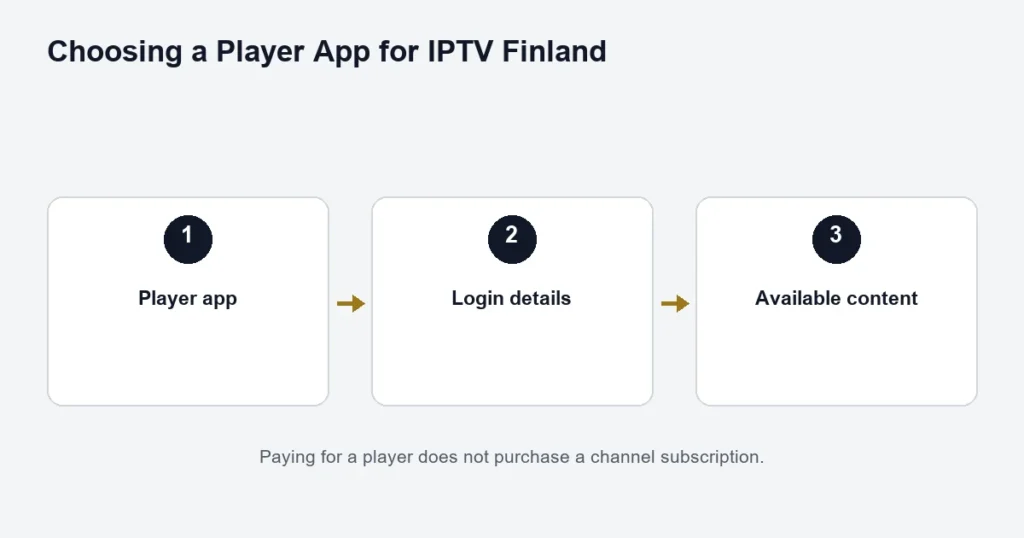
Choosing a Player App for IPTV Finland

Separate the player licence from the subscription, then check compatibility and the correct login method.
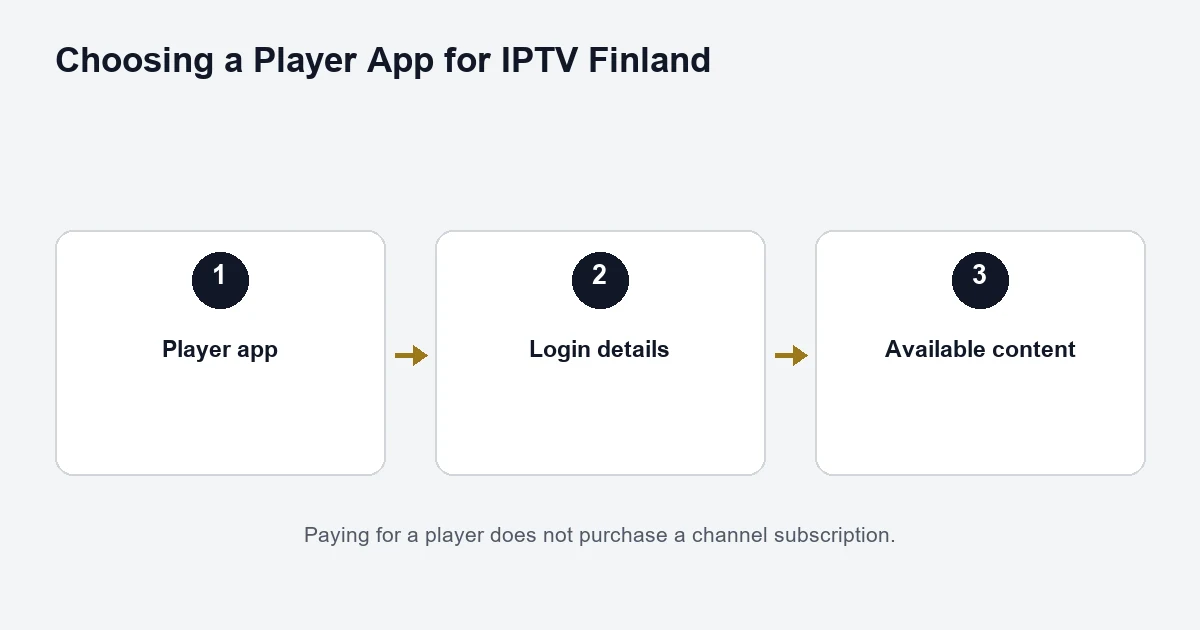
Diagram linking a player app, login details and available content

An IPTV player displays the content available through your subscription. Installing or activating the player does not, by itself, supply channels. Before paying an app fee, confirm that the app works on your device and that you have the subscription details needed to use it.

Hot Player

Hot Player has a separate activation process. Use the website linked by the actual app you installed and check its publisher, rather than assuming similarly named apps are interchangeable. The HotPlayer website describes player activation separately from playlist content.

Finland Premium lists Hot Player / IBO Lifetime Activation as a benefit. Ask support which app and device are covered before buying an additional licence. That app benefit does not make the IPTV subscription lifetime; the subscription still has its chosen term.

Read the Hot Player activation guide before buying a licence.

IBO Player

IBO Player’s support FAQ makes clear that player activation does not include channels. Follow the instructions inside your installed app when pairing or managing it. A change between Wi-Fi and Ethernet can affect the device identity shown by some TV installations, so mention that change to support if activation appears different.

The dedicated IBO Player guide separates device identity, licence and playlist problems.

TiviMate

The official TiviMate listing describes a player designed for Android TV and remote-control navigation. It supplies no content of its own. Check the current listing on your device rather than assuming a phone, computer or another TV platform uses the same edition.

See TiviMate configuration checks for television controls and guide limitations.

Smarters

Confirm the exact Smarters application, publisher and device edition with support. Similar names are not enough to identify a download. This guide does not provide an unverified APK link or claim that one edition supports every platform. If the application offers multiple login methods, use the one that matches the details supplied to you.

Entering Xtream details

Keep Server, Username and Password in their separate fields. Preserve an explicitly supplied server port, and check copied text for accidental spaces. Do not paste a full playlist link into the server field unless the app’s own instructions explicitly call for that format. Never share a screenshot containing credentials in a public forum.

If login fails, first confirm the fields and app edition. Then note whether the error is authentication, a missing channel list, or playback after login. Those are different problems and need different checks.

See device compatibility before installing, or return to the setup guide.

Choose the player after identifying the screen

Begin with the device’s operating system and the controls you intend to use. A television needs an interface you can navigate from a remote. A phone needs usable touch controls. A desktop player may be comfortable with a mouse but awkward from across the room.

The device hub helps identify that starting point. Do not select an app first and then assume it can be installed on every screen in the household. The same name can refer to different platform editions.

Compare three practical things

Supported input

Check whether the player accepts the access method supplied for your account. Separate server fields, an app registration and a playlist input are not interchangeable. If the available field does not match your instructions, confirm the method before entering private details elsewhere.

Everyday controls

Open a programme, return to the list and find guide, audio and subtitle controls. Test these at the normal viewing distance. A successful installation is not a complete usability check if the household cannot operate the player comfortably.

Licence scope

Read what the app activation covers and whether it is tied to an edition or device. Keep it separate from the streaming term and connection allowance. A lifetime player licence does not mean lifetime access to television content.

Assess the named players individually

The Hot Player guide focuses on identifying the correct edition and activation route. The IBO Player guide addresses registration and playlist boundaries. The TiviMate guide covers its television-player context and the distinction between app features and service access.

These are guides to questions and setup boundaries, not a claim that every player is available on every device. Confirm the actual listing and publisher before downloading or paying.

Preserve a working baseline

After setup, note the player version, device model and supported account mode. If a later issue appears, compare it with that baseline. Changing to another app can be useful when instructed, but doing so immediately for every channel problem makes it harder to identify whether the source or player changed.

If only the guide is wrong, use the EPG checks. If one title fails, record its exact edition. If nothing loads, return to the account setup steps.

Player questions

Does paying for an app supply channels?

Do not assume that it does. A player is the viewing software; the subscription supplies access. Read the publisher’s description and the service instructions separately.

Does an app’s multi-device licence increase my stream allowance?

No. Installation rights and simultaneous service usage are different. Follow the selected connection allowance and the account arrangement supplied for it.

Which player is best for Finnish subtitles?

Test a relevant programme and the exact edition on your device. Subtitle availability depends on the source as well as the player’s support. A general app recommendation cannot establish every title’s track options.

Can I use a similarly named free download?

Verify the publisher and supported source. Similar names and logos are not enough to establish that a download is the intended product. Avoid entering service credentials until the app’s identity is clear.

Make the licence decision last

Confirm device support, input compatibility and the controls first. Then review any activation requirement and the applicable Premium benefit. This sequence avoids paying for software before learning that it does not fit the actual television or supplied access method.

Make a small player comparison sheet

Use four columns in a private note: exact edition, supported device, accepted input and licence requirement. Add a short observation about the remote or touch controls after testing. This is more useful than a list of app names ranked without context. Keep unavailable or unverified features marked as questions rather than assuming the paid edition includes them. If the household uses several platforms, assess each edition independently. A consistent app name can be convenient, but the priority is a supported, usable installation that accepts the supplied access and can be operated comfortably by the people who will watch.

Should the whole household use one player name?

A consistent interface can be convenient, but supported editions and comfortable controls matter more than matching names. Compare the actual television, mobile and desktop versions before making that a requirement. If different players are needed, keep a clear setup note for each screen and the account method supplied for it. That is more reliable than forcing an unsupported edition onto a platform simply to make every app icon look the same.

Chat with usUsually replies quickly
Scroll to Top