
IPTV Finland on Apple TV: Model, App and Login Checks
Use the App Store on a supported Apple TV model and verify the player’s subscription-login method.
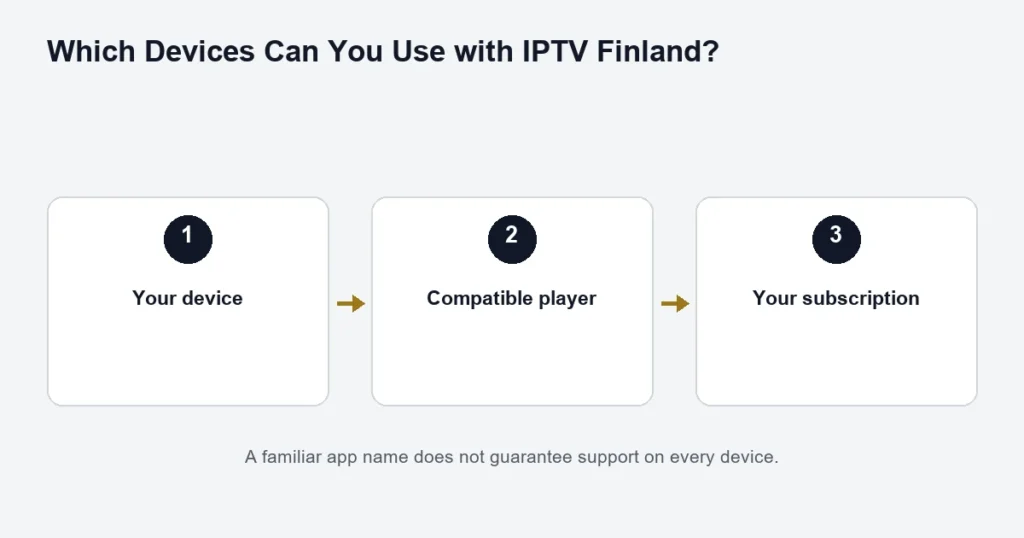
Apple TV 4K and Apple TV HD support app downloads through the App Store. Apple TV third generation has different capabilities and does not provide the same route for adding new apps.
Choose the correct app edition
Use the App Store on the Apple TV, search for the agreed player and inspect the listing. Apple’s download instructions explain the Get, price and Open buttons. A free download can still offer paid features, and a player purchase does not include an IPTV subscription.
Separate login from playback quality
Configure the player using the supplied format, then test ordinary playback before changing output settings. If a particular source has no sound or subtitles, record the source and selected track. Do not assume every listed title includes Finnish or Swedish options.
Using a 4K television
A 4K output mode is not proof that the source itself is 4K. Check the source, player and display path, including any receiver between the Apple TV and screen. The 4K playback guide explains that chain.
Keep your Apple account, any app licence and subscription credentials distinct. See the installation guide for field-by-field checks, or the app guide if you have not selected a player yet.
Distinguish the Apple TV device from the Apple TV app
The hardware connected to the television and an app named Apple TV are not the same installation environment. Start with the physical device model and its settings. A television that contains the Apple TV app does not thereby become an Apple TV box capable of installing the same player editions.
Record whether the player runs on Apple TV hardware, an iPhone or another device. This simple identification step prevents instructions for a mobile app from being mistaken for a television setup procedure.
Confirm the player edition in the device’s store
Look for the exact player and publisher on the Apple TV device. Do not assume a compatible iPhone listing includes a television edition. Check its supported inputs and controls before buying a licence.
If the desired app is absent, record the model and player name. The device guide gives the broader platform checks. Avoid treating an app-store search on a different Apple device as proof of television availability.
Use the remote for the full viewing routine
- Open the installed player from the home screen.
- Select the supported login method.
- Move between fields and enter the supplied details.
- Open a programme and return to the list.
- Find guide, audio and subtitle controls.
- Stop playback and reopen the saved account.
If another device helps with text entry, still verify that everyday navigation works with the television remote. The goal is a setup that can be used normally after installation, not only while someone is helping with a phone.
Keep Apple account details separate from streaming access
The account used for device or store functions is not the subscription login supplied for IPTV. A player’s own licence account can be another separate item. Read each screen’s purpose before entering any credentials.
The installation guide explains how to use separate server fields when that is the supplied method. If an app requires a different input, confirm the supported route rather than inventing an address from the fields.
Check the entire 4K and audio path
Apple’s 4K and HDR guidance explains why the television input and connected equipment matter. Use the documentation for your model and the actual display arrangement. A source, device and television need compatible capabilities; one label does not settle all three.
If a receiver or soundbar is connected, include it in the setup record. A picture can work while the sound route needs separate attention. The 4K article keeps resolution, HDR and source availability distinct.
Assess language and library behaviour
On a relevant programme, inspect the audio and subtitle tracks offered by the source and player. A Finnish device interface does not confirm Finnish subtitles. For series, identify the season and episode if one item behaves differently from the rest.
The movie and series guide helps compare editions and tracks. If the issue concerns a scheduled channel rather than an on-demand item, record the channel, date and time instead.
Troubleshoot at the right stage
The app cannot be found
Check the exact hardware and supported listing. This is a compatibility question before it is a subscription question.
The account will not load
Confirm the selected login mode and individual supplied fields. An app licence and a service account are not interchangeable even if both use an email or password field.
The guide is wrong while video works
Use the EPG checks to inspect clock and schedule information separately. Keep the working playback result as useful evidence.
Apple TV questions
Can I follow an iPhone player’s instructions exactly?
Only where the publisher explicitly documents the same procedure. A television edition can have different menus, inputs and licence terms. The mobile guide addresses the phone or tablet route.
Does the Premium player benefit cover every Apple app?
No universal app entitlement is promised. Confirm the named player, edition and device before buying a separate licence.
Can two Apple devices watch at once?
Follow the purchased connection allowance and supplied setup. Device compatibility and simultaneous viewing are different questions; installing an app on both does not increase the allowance.
Should I change all picture settings for one source?
First compare another available source and record the symptom. Follow equipment-specific guidance for any output change and keep the original values so a working configuration can be restored.
What should I retain after setup?
Save the hardware model, player edition, order reference and a brief description of the working output arrangement. Store access details privately rather than in a visible account label or public support screenshot.
Check what the television input is showing
If the household switches between the television’s native apps and an Apple TV device, make the route explicit. Note the input used by the Apple TV and the remote that controls its player. A source working in a native television app does not prove the Apple TV player is configured, and the reverse is also true. When reporting an issue, identify the device actually running the app rather than only the television brand. This is especially useful for sound or picture questions involving a receiver: the app, output device and selected input can be traced without changing the account or guessing which platform’s instructions apply.
Can a shared television make setup confusing?
Yes, particularly when the household alternates between native television apps and the Apple TV input. Make a short note identifying the input and remote used for this player. Test opening it from a normal powered-on state rather than assuming the previous session remains on screen. If another viewer cannot reproduce the route, fix that navigation uncertainty before changing credentials. A clear input choice and saved account label can resolve everyday confusion without altering any service setting or exposing private access information.