
IPTV Finland on LG TV: webOS App Setup Checks
Find a compatible player in your LG television’s app store and separate store, activation and playback problems.
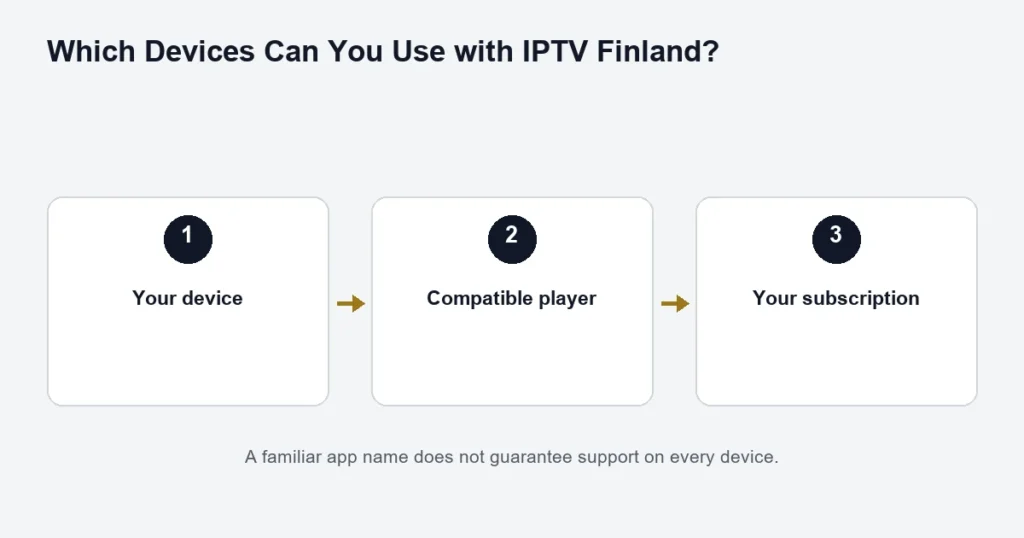
For an LG television, check the exact model and webOS version before choosing a player. The store listing must support that television; an app working on a different LG model does not prove compatibility.
When an app is missing
Check the TV’s internet connection, available storage, account status and Services Country setting. Keep the country appropriate for where the TV is used. LG’s app installation support explains these checks; menu paths and catalogue availability depend on market and software.
Do not confuse two activations
A player may ask for a device identifier or licence before it displays a playlist. Subscription credentials are a different part of the setup. If a licence appears missing after changing between Ethernet and Wi-Fi, give support that detail and the identifier displayed by the app; do not publish the identifier or login in a review.
Test using the remote
Check channel selection, returning to the list, subtitles and guide navigation. If the app opens but a stream does not, note the programme and error. Reinstalling immediately can erase useful settings without showing whether the issue is login, content or network-related.
The IBO Player guide explains registration and playlist boundaries. If the required application is unsupported, the smart-TV route comparison describes what to check before adding an external box.
Identify the webOS television you are using
Record the full model and software information from the LG television. Similar product names can cover different years and capabilities. A player working on a neighbour’s LG screen does not establish that the same edition is available on yours.
Check whether the app actually runs on the television or on an external HDMI device. If a separate box provides the home screen, use that device’s installation guide. The LG display and the external app environment are two different parts of the setup.
Find the supported app listing
LG’s app installation guidance describes the store route. Your Finnish model may show different labels, so use the television’s own available controls and check the exact publisher before installing.
If the listing is absent, note the model and player name. Do not assume an Android installation file can be used on webOS. A different platform’s download may have no relevance to the television’s supported app system.
Check the immediate store requirements
Confirm the television is online and that any account sign-in required by the store is complete. Review available storage and the appropriate country setting. Keep the country consistent with the actual use rather than changing it solely to force a listing that may not support the model.
Separate licence registration from service access
A player may ask for a device identifier or activation before a playlist appears. That step belongs to the app. The streaming subscription supplies its own access information. Completing one does not prove the other has been configured.
If an identifier displayed by the app changes after a network or equipment change, report the circumstances privately to the appropriate support channel. Do not publish the identifier together with access details. The IBO Player checks discuss this distinction, while the Hot Player guide helps identify the applicable edition.
Make the first playback check simple
- Open the confirmed player from the LG home screen.
- Select the account configured according to the supplied instructions.
- Allow the available list to finish loading.
- Play a relevant channel or title.
- Use the remote to return to the list.
- Find the audio, subtitle and programme-guide controls.
Keep the test on one screen initially. If another household player is running, stop it while checking the first setup. That prevents an overlapping-viewing question from being confused with the television’s basic compatibility.
Check language on the actual programme
The television menu language and the stream’s tracks are separate. For Finnish or Swedish viewing, open a programme that is supposed to provide the required option and inspect its track menu. If the option is missing, record the exact source or episode.
Do not repeatedly change the television language to solve one title’s missing subtitle track. The movies and series guide explains why editions and episodes need to be identified individually.
Troubleshoot without losing a working setup
The app does not open
Record the app version and television software, then consult model-specific publisher guidance. This differs from a player that opens normally but cannot load the account.
The account list is empty
Check the configured account and the input method supplied for it. A player activation screen, a server login and an app-store account are not interchangeable. The installation guide helps separate those stages.
Playback works but the schedule is wrong
Keep the working video result and investigate the guide separately. Check the clock and the specific channel through the EPG guide instead of reinstalling the app immediately.
Assess another route only after identifying the limitation
If the native LG app route is unsupported, an external player may be an option to investigate. The smart-TV comparison explains the added device, remote and input checks. Do not buy a box without confirming its own player compatibility.
An external device changes where the app runs. It does not change the LG panel’s resolution or establish that every source will be 4K. If picture quality is the reason for the change, review the complete playback chain first.
LG questions
Does a webOS update guarantee a missing app?
No universal guarantee is made. Follow LG’s guidance for the model and inspect the actual store listing. Availability and compatibility remain specific to the app and television.
Should I erase all TV settings for one channel problem?
Start with a narrower comparison. Try another available source and record the failing programme. A full reset can remove unrelated settings without explaining a single-source issue.
Can I use the same player licence on another TV?
Check the publisher’s terms and any applicable plan benefit. Do not assume a device registration transfers simply because both televisions are LG.
What makes a useful support description?
Include model, player edition, the failed step and whether other sources work. Keep login details private and crop them out of screenshots. That information helps distinguish a store, activation, account or playback issue.
Keep the network-change sequence clear
If a player registration appears different after switching the television between wired and wireless networking, note the order of events. Record whether the app was reinstalled, the television was reset or only the connection changed. Those are different situations and should not be collapsed into a report that the licence disappeared. Keep identifiers private and ask about the documented registration behaviour for the installed edition. Do not buy a replacement subscription before separating the app registration from service access. A clear timeline helps preserve any working licence information and makes the next support question specific to the actual change.