
IBO Player with IPTV Finland: Licence, Device and Playlist
IBO activation does not include channels. Check device identity and subscription configuration as separate steps.
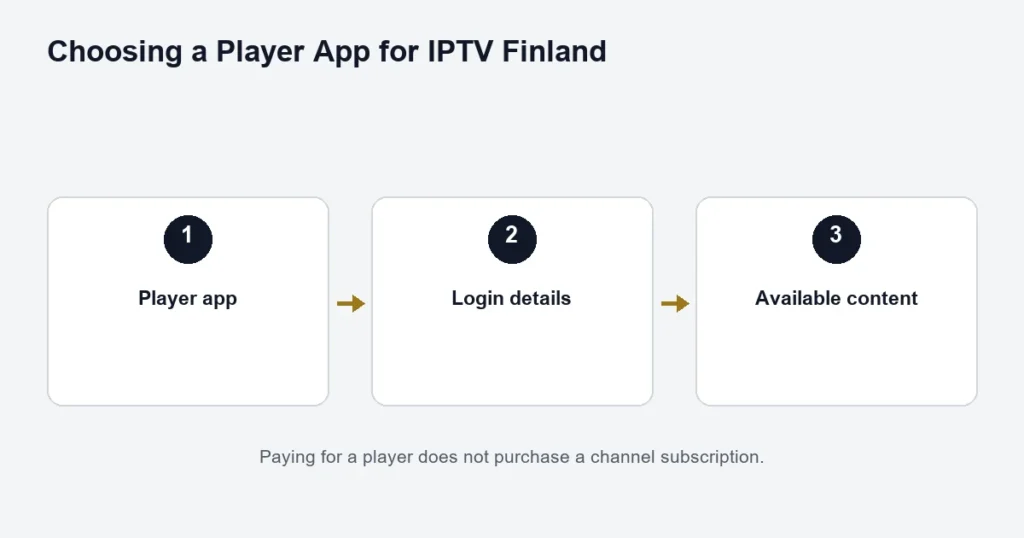
IBO Player’s activation is for the player. Its official support FAQ distinguishes activation from channel content. You still need valid subscription details and the correct configuration for the installed application.
Use the identity shown by the app
Follow the management address and device details displayed inside your installed app, rather than a similarly named search result. The publisher notes that switching between Wi-Fi and Ethernet can result in different device identities on some installations. Mention a recent network-interface change if an activation appears to be missing.
Check the right failure
- A licence prompt concerns the player activation.
- A missing playlist concerns configuration or supplied access.
- A listed channel that does not play needs a source, network or playback check.
Repeatedly buying an activation cannot establish which of these is wrong. Keep a private record of the app edition and device details before resetting anything.
Premium and the app benefit
IPTV Finland Premium lists Hot Player / IBO Lifetime Activation. Confirm the covered app and device first; it does not extend the streaming term indefinitely. The player overview helps compare options, while the installation guide covers subscription login details. For an LG television, use the LG store checks before installation.
Confirm which IBO Player you have installed
Record the app’s exact name, publisher and platform. Similar names can be used by different products, so a search result containing IBO is not enough to identify the correct activation route. Use the documentation associated with the actual installed edition.
The existing project reference is IBO Player’s FAQ. It distinguishes activation of the player from providing channels. Keep that distinction in mind before purchasing any licence or entering subscription information.
Check the native television route
On a Samsung or LG television, inspect the listing in that television’s supported app store. The Samsung checks and LG checks explain the model information to record. An Android download does not establish support for a native television platform.
If the app runs on an external box, identify that box instead. The television brand is then part of the display arrangement, while the box determines the app environment and registration method.
Keep registration information private
Some app setup routes use a device identifier or code. Treat those details as private setup information and provide them only through the confirmed route when required. Do not post a full registration screen in a public forum together with service credentials.
If the displayed identifier changes after a network or hardware change, record what changed and ask about the applicable registration behaviour. Do not assume a new subscription is needed before the app-specific question has been resolved.
Activation does not supply the programme list
An activated player is software ready for its supported input. Subscription access is a separate part of the setup. If the app opens but no channels appear, establish whether the access information has been supplied and configured through the correct method.
The installation guide explains why separate server fields, an app account and a playlist input should not be interchanged. If the player requests a format you were not given, confirm it instead of building a guessed URL.
Check the Premium benefit before paying again
The advertised Premium benefit refers to Hot Player / IBO lifetime activation. Confirm the applicable app, edition and device before purchasing a separate activation. This guide does not promise reimbursement for a different player bought independently.
Read the Premium comparison to keep that benefit separate from the streaming term. A twelve-month subscription remains a term-based service even when a player benefit uses lifetime wording.
A practical first-use check
- Open the confirmed player edition.
- Verify the intended registered device or saved account.
- Load the available list according to the supplied instructions.
- Play a relevant channel.
- Test remote navigation and the guide.
- Inspect audio and subtitle options on a representative programme.
Use the actual room and remote you expect to watch with. A setup completed by someone using a different controller is not finished until the normal household controls are understood.
Separate symptoms before reinstalling
The app asks for activation
Record the exact edition and screen message. Confirm the applicable licence or benefit. Do not repeatedly purchase activation without knowing whether the correct device registration is selected.
The app is activated but the list is empty
Check the access setup rather than assuming the licence supplies channels. Keep the configured account and the supplied instructions aligned.
The guide is missing or shifted
If video plays, keep that result and use the EPG guide. A schedule problem does not necessarily require deleting the player or account.
Check features on the source you need
A player control for replay does not establish catch-up on every channel. The replay checklist covers source support and programme windows. Similarly, subtitle availability should be checked on the exact programme, not inferred from the language of the menu.
For a household using several screens, follow the purchased allowance and supplied account arrangement. The number of devices that an app licence supports is not the same as the number of simultaneous streams included with the service.
IBO Player questions
Does activation include channels?
The referenced publisher FAQ separates player activation from channel provision. Use the subscription access supplied for the service and the player’s documented method.
Can a licence move to a replacement device?
Check the applicable publisher terms and device-registration process. Do not assume transfer merely because the replacement uses the same brand or app name.
Should I try several activation websites?
Confirm the installed app’s identity and documented route first. Entering device or account information into unrelated pages can expose private setup details without resolving the issue.
What should I send in a private support enquiry?
Start with the device model, app edition and failed stage. Provide sensitive registration details only through the established private route if they are actually required. Never include passwords in public screenshots.
Record a device change before requesting another activation
When replacing equipment, keep the old model and app edition alongside the new model. Note whether the network connection changed at the same time and what identifier the new installation displays, storing that detail privately. Ask which registration step applies before buying another licence. If the app activates but the list remains empty, keep those as separate observations rather than treating the activation as failed. The service access may still need its supported setup. A concise record of the old and new arrangement makes the question concrete without assuming that every licence transfers or that every device change requires a new purchase.
How do I distinguish a saved playlist from registration?
Record what the screen actually displays: a device-registration status, a saved list name or playable programme entries. These are different observations. If a list name appears but no programme loads, describe that stage rather than reporting only that activation failed. Keep the app edition and device with the observation. This gives the next private enquiry enough context to investigate the relevant step without asking you to publish a full registration screen or buy another licence before the incomplete stage is understood.