
Hot Player with IPTV Finland: Activation and Subscription
Check the exact Hot Player publisher and device, then distinguish the player licence from your IPTV subscription.
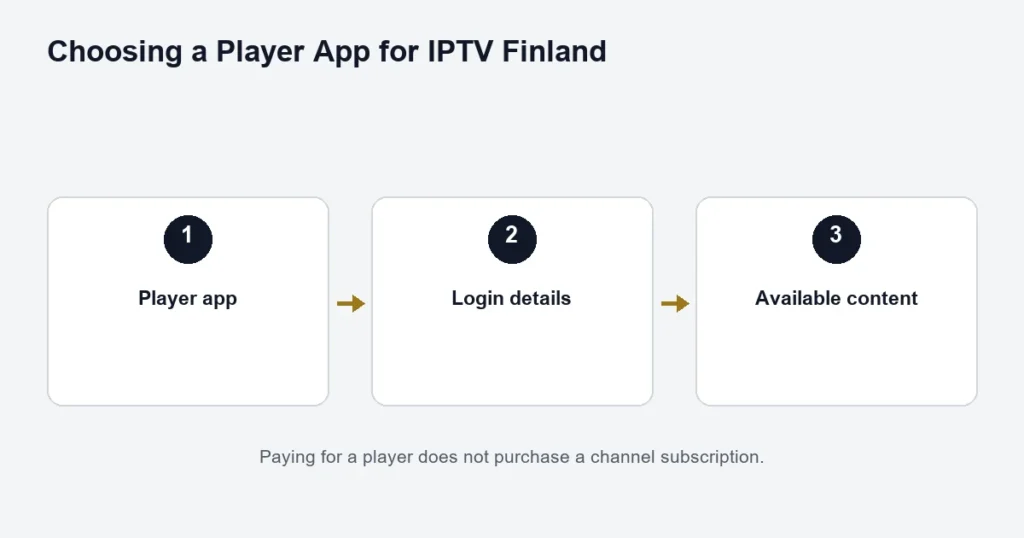
Hot Player is the playback application; activating it and obtaining a streaming subscription are separate steps. Start with the website linked by the app you installed so that similarly named applications do not lead you to the wrong activation page.
Confirm the app before paying a licence
The HotPlayer publisher website describes the player and its activation. Verify the device edition and the details shown inside your installed app. Do not send a subscription password to an unrelated site found through a similar name.
What the Premium benefit means
IPTV Finland Premium lists Hot Player / IBO Lifetime Activation. Confirm which app and device the benefit covers before purchasing a separate licence. The listed benefit does not turn the streaming subscription into lifetime access; the chosen one-, three-, six- or twelve-month term still matters.
After the player opens
Follow the app’s supported subscription-configuration method. If the player is activated but channels are absent, distinguish that from a rejected player licence. Keep the app version and the exact error wording, while keeping device identifiers and passwords private.
Compare the IBO setup boundaries if you are deciding between the listed apps. Read the Premium features and use the installation guide for the subscription side of the process.
Identify the exact Hot Player edition
Begin with the player listing on your device and record its publisher and platform. Similar names can appear on different websites or stores. Do not assume an activation page found in a general search belongs to the app installed on your television.
The existing reference is the HotPlayer publisher site. Use the identity shown by the installed app and its supported documentation. This guide does not treat similarly named domains as interchangeable.
Check whether the device route is supported
A player available on one platform may use a different edition or installation process on another. Start with the device identification guide. For native television installations, use the Samsung or LG store checks as appropriate.
Record a missing listing rather than forcing an unrelated installer onto the television. A phone app or an Android file is not evidence that the same route is supported by every smart TV.
Understand what activation is doing
A player activation concerns the software. It should not be confused with receiving subscription channels. HotPlayer’s activation information distinguishes the media player from the content you supply to it. Read the screen’s purpose before entering details or making a payment.
Premium lists a Hot Player / IBO lifetime activation benefit. Confirm which app, edition and device the benefit applies to before buying a separate licence. The Premium guide explains why that wording does not mean lifetime television access.
Follow the supported account setup
- Confirm the installed app’s identity.
- Identify its documented setup or registration route.
- Use the access instructions supplied for the subscription.
- Keep any device identifiers and credentials private.
- Reload the player as instructed by the applicable documentation.
- Test one available source.
If the app asks for a playlist or identifier you were not given, do not invent one. The installation guide helps you describe the mismatch. A request number or app-store password is not a substitute for service access.
Check the controls after the list appears
Use the normal remote to choose a channel, return to the list and open the guide. Locate audio and subtitle controls while a relevant programme is playing. For Finnish or Swedish viewing, verify the actual source tracks instead of changing the whole device language.
Check how to stop playback before moving to another screen. Leaving a player open while watching elsewhere can complicate a connection-limit test. Follow the supplied simultaneous-viewing allowance.
Describe the failed stage
Activation screen remains visible
Record the app identity and what the screen requests. This is different from an activated player with an empty channel list. Avoid paying repeatedly before confirming which stage is incomplete.
The list does not load
Check the setup instructions and selected account. Keep credentials out of screenshots. An app activation alone does not establish that subscription access has been supplied and entered correctly.
One programme fails
Try another available source without changing the account. Note the exact programme and time. Reinstalling the player immediately can remove useful settings without explaining a source-specific issue.
Keep player features separate from source features
A guide, replay control or resolution label in an interface does not guarantee every source supports that function. Use the catch-up guide for replay questions and identify the channel and programme before assuming an archive exists.
Likewise, a successful 4K source depends on the complete device and display setup. The player name alone is not a picture-quality guarantee. Choose the tier and equipment using confirmed requirements.
Hot Player questions
Does the player licence include IPTV Finland?
Do not assume an app activation supplies the subscription. Keep software activation and service access separate and follow the specific information supplied for each.
Can I activate a similarly named app with the same benefit?
Confirm the exact publisher and edition first. Similar branding is not evidence of eligibility or compatibility.
What if I replace the television?
Ask about the app’s device and licence terms before assuming registration transfers. Also verify the replacement television’s store listing.
Should I share the device identifier publicly?
No. Use the established private setup route when it is needed. A public problem description can usually identify the app and symptom without exposing registration or access details.
What should I retain after successful setup?
Keep the device model, app edition, order reference and any applicable activation confirmation. Store credentials separately and privately so later troubleshooting does not require exposing the original access message.
Check the publisher identity before entering details
Open the installed app’s own information or documented support reference and compare it with the page you intend to use. Similar spelling, an extra hyphen in a domain or a familiar logo is not enough to establish that a page belongs to the same product. If the identity is unclear, keep the app name and platform and ask for the correct route. Do not test several websites by submitting private registration information to each. Once the route is confirmed, retain it with the app edition so a later reinstall does not require repeating a broad search and guessing which activation page was used.
What if a setup page looks different from the app instructions?
Stop before submitting private information and compare the page identity with the installed edition’s documented route. A redesigned interface is possible, but a similar name alone is not proof that it is the same publisher. Keep a non-sensitive description of the discrepancy, such as the field labels or platform named. Ask for the appropriate route rather than trying credentials in multiple pages. Once confirmed, retain that reference with the app version so future setup work starts from an identified source.