
EPG and Catch-Up: Schedule or Replay?
Understand what the programme guide shows and when an earlier programme can actually be played.
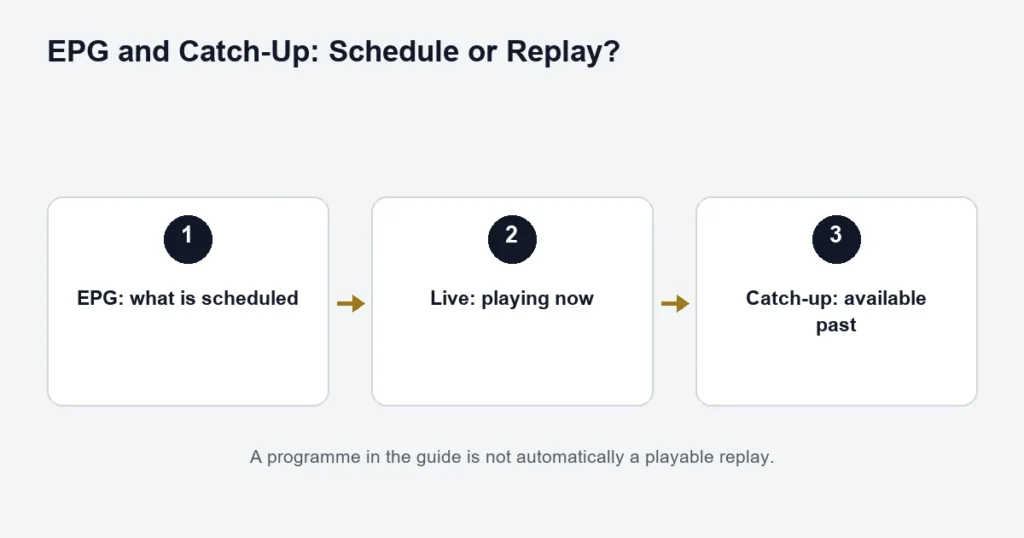
EPG is the electronic programme guide: a schedule associated with channels. Catch-up lets you play an earlier programme where the channel, service and player support that feature. They are related tools, but they are not interchangeable.
When a programme guide is empty
First check whether the channel itself plays. If playback works but the guide is empty, the login and the guide data may need different checks. Use the player’s guide-refresh option if it has one, then note whether all channels or only some entries are missing.
Check your device’s date, time and time zone. A guide shifted by an hour is a different problem from no guide data at all. Avoid applying a large manual time offset until you have confirmed the underlying device setting.
For replay windows and player support, read when a past programme can be played.
How to check catch-up availability
Look for the replay or catch-up indicator provided by your player, if supported. Select an earlier programme only when the channel offers playback for that entry. Do not assume that every past programme in the schedule is included, or that all channels retain programmes for the same period.
Finland Premium lists EPG and catch-up where available. No universal replay window is promised here. If a programme matters to you, ask support about the specific channel and programme rather than relying on a general feature label.
Catch-up is not your own recording
A catch-up catalogue is managed separately from a recording made by your device. Recording support, storage requirements and whether it consumes another connection depend on the actual setup. Confirm those details before scheduling recordings alongside household viewing.
What to send support
- Channel and programme name.
- Scheduled date and time, including the time zone you are using.
- Player name, version and device model.
- Whether live playback works and the exact replay error.
Keep account credentials out of screenshots. For live events, also see the sports viewing checklist.
Check the schedule against one known programme
Choose a programme whose channel and expected broadcast time you can identify. Compare the guide’s date, time and title with that information. This is more useful than scanning hundreds of entries and deciding that the guide generally looks wrong.
For Finnish viewing, distinguish Finnish and Swedish channel or programme versions where relevant. Similar names can refer to different feeds. Use the Finnish channel checklist to record the exact source before reporting a mismatch.
What an empty guide tells you
If the channel plays while its schedule is empty, the video and guide are behaving differently. Confirm whether other channels have entries, whether the correct account is selected and whether the player’s documented guide refresh has finished. An empty schedule does not by itself establish that the whole subscription is inactive.
If every list is empty, start with the account setup checks instead. Repeated guide refreshes will not correct an account entered in the wrong login mode.
A careful refresh routine
- Confirm the device date, clock and time zone.
- Select the intended account or playlist.
- Use the guide refresh control supplied by the player.
- Allow the operation to finish before starting another refresh.
- Compare the same channel and programme again.
- Record what changed and what stayed wrong.
Keep the player’s own terminology in your notes. One app may distinguish a channel-list update from an EPG update. Another may refresh them together. Follow the installed edition rather than copying a menu path from an unrelated player.
When all programmes appear shifted
A consistent time difference across many channels is different from one incorrect title. Check the device clock before applying an app-level offset. If you use a fixed offset, record its previous value so you can return to it after the test. Changing several time settings at once makes the outcome harder to interpret.
When a broadcast crosses midnight, verify the selected date as well as the hour. Sports schedules and late films can be easy to misread when an event listing uses a different local time. The sports guide explains why naming the event and date is more useful than simply reporting the channel.
Make the guide easier to use without changing the source
Where your player supports favourites, a smaller list can make it easier to find the channels you actually watch. Check a favourite against the full list if it appears to point to an old or different feed. Organising a list is a navigation choice, not evidence that the underlying schedule has changed.
Test the guide from your normal viewing distance. Can you read the programme title, move to the next day and return to playback with the remote? The player comparison is the better place to assess controls and editions; this article focuses on schedule accuracy.
Guide questions
Why is one channel correct and another wrong?
Guide information can vary by source. Record the specific examples instead of changing every channel to match the incorrect one. A narrow report preserves the parts that already work.
Does a programme description prove that subtitles are available?
No. Inspect the audio and subtitle options during playback. A schedule description and the stream’s selectable tracks are separate pieces of information.
Can I replay anything still shown in the guide?
No. Read the catch-up checks for source support, replay windows and player compatibility. A schedule may remain visible without a playable archive.
Should I send a screenshot?
A cropped image showing the channel, date, time and wrong title can help. Remove account names or credentials first. Include the text details as well so the issue can be understood without guessing small text in an image.
Before choosing a tier for its guide features
Review the published Standard and Premium feature lists, then test the player you intend to use. A richer catalogue does not ensure identical schedule completeness across every source. Choose around the programmes you need and the navigation that works for your household.
Use two reference programmes for a time check
Choose one current programme and another later in the guide on a different relevant source. Compare their displayed dates and times before applying a global correction. If both show the same offset, record that pattern. If only one is wrong, keep the investigation source-specific. This avoids making a correct guide worse while trying to fix a single entry. Include the selected date when reporting late-night programmes, because a date mismatch can look like an hour problem. Keep the working video result separate as well: correct playback and incorrect schedule information can coexist and need different troubleshooting steps.