
IPTV Finland on Phones and Tablets
Plan for touch controls, network changes and simultaneous viewing when using iPhone, iPad or Android devices.
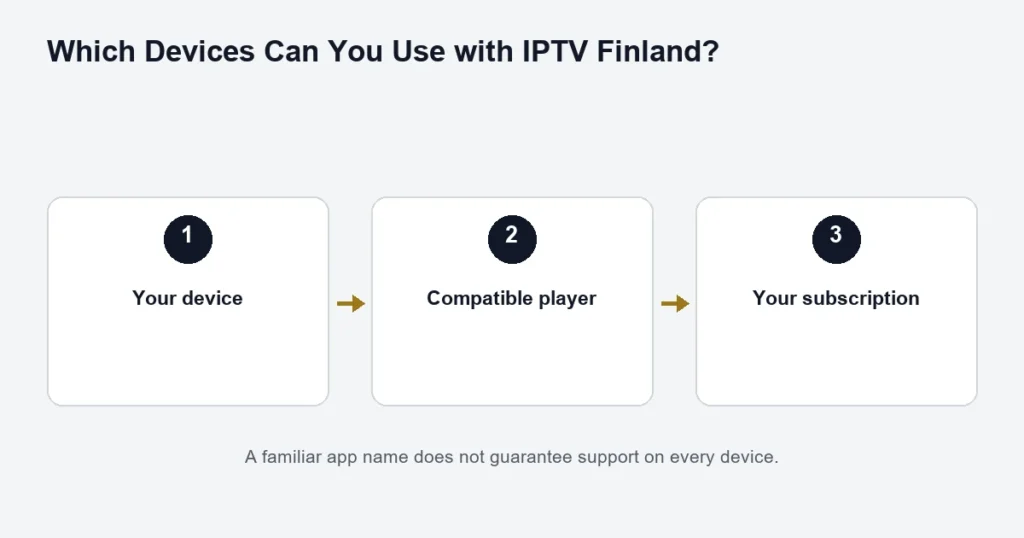
A phone or tablet needs a player edition for its own operating system. Check the iOS, iPadOS or Android listing and publisher; a TV licence or interface may not cover the mobile edition.
Start on the network you understand
Configure and check playback on your usual Wi-Fi first. If you later switch to mobile data, recognise that the network changed as well as the viewing location. Check your mobile plan’s data terms yourself; this guide does not promise a fixed amount of data per hour.
Check the controls you will actually use
Try portrait and landscape navigation, audio and subtitle selection, returning from the guide and stopping playback. Background playback, picture-in-picture, casting and downloads are app-dependent. Do not assume any of them is included because the stream opens.
A phone can use the same connection allowance
If the living-room TV remains playing while a phone starts another programme, two simultaneous connections may be needed. Closing a menu is not always the same as stopping playback. Confirm that the old player has stopped before checking a connection-limit error.
See the connection guide for household examples. Use the player guide to distinguish app licences from the subscription. Travelling abroad may change network or content availability, so confirm the destination and desired feed in advance.
Identify the mobile platform and player edition
Start with the phone or tablet model and operating system. An Android edition and an iPhone or iPad edition can have different menus, supported inputs and licence terms. Confirm the exact publisher rather than installing the first app containing IPTV in its name.
A player that works on a television is not automatically the same product on a phone. The player guide explains how to compare editions and why app activation is separate from service access.
Set up the device privately
- Install the confirmed compatible app from its supported source.
- Choose the input method matching your supplied access.
- Enter the individual fields carefully.
- Save a recognisable account name without private credentials in the label.
- Load one available programme.
- Check how to stop playback when you finish.
Phones make it easy to copy a message, but copying the entire access message into one field is not the same as entering separate Server, Username and Password values. The installation checklist helps identify the expected format.
Check touch controls in both orientations
Try portrait and landscape use if the player supports them. Find the playback controls, guide and audio or subtitle menu. Make sure you can dismiss the keyboard and return to the list without accidentally losing the account entry.
On a tablet used by several household members, choose a clear saved label and learn how to select the right account. Do not put passwords into labels simply to make them easy to find. Keep private access information in an appropriate secure location.
Test the network you intend to use
A successful home Wi-Fi test describes that setup. It does not establish identical behaviour on every mobile or managed network. Before watching away from home, understand the network’s rules and your data allowance; this guide does not promise a particular amount of data use.
When comparing a problem, keep the same device, player and source where possible. Record which network shows the symptom. Changing the app and programme at the same time as the network makes the result harder to interpret.
Do not treat every interruption as an account problem
Note whether playback stops when the app moves to the background, the screen locks or the network changes. Player and device behaviour can differ. Describe the exact sequence rather than assuming a subscription purchase will change background playback support.
Keep portability separate from simultaneous viewing
Using a phone after the television is stopped is different from watching on both at once. Count actual overlapping streams and follow the purchased allowance. A tablet app licence does not create an additional service connection.
The connection examples help plan a household with mobile screens. Stop unused playback explicitly when switching devices so a test is not confused by another session still running.
Check language on a representative programme
Choose a title or channel with the Finnish or Swedish track you need and inspect its actual menu. The phone’s system language does not supply missing subtitles. If one episode differs, record the episode rather than reporting the whole app as unsupported.
The on-demand guide explains edition and episode checks. For live schedules, use the EPG article to separate guide information from playback.
Casting is another capability to verify
Do not assume a mobile player can send video to every television. Casting, screen mirroring and native television playback can be different routes with different requirements. Confirm the app and destination device support the intended method before relying on it.
If the main goal is watching on the television, compare a native TV or external-player setup in the smart-TV guide. A phone working on its own is not a complete television compatibility test.
Phone and tablet questions
Can I use the same instructions on Android and iPad?
Use the publisher’s instructions for the exact edition. The general account concepts may be similar, but store, menu and licence details can differ.
Will the app continue playing when I lock the screen?
Do not assume universal background behaviour. Check the installed player’s supported features and test the intended use on the actual device.
Can I send a full access screenshot to a group chat?
No. Keep service credentials private. Describe the device, app and error, and crop sensitive fields out of any troubleshooting image.
Does a trial test mobile and television playback together?
The current free request covers one connection. It can help assess a selected device, but it is not a simultaneous multi-screen test. Read the trial information before planning the check.
What should I note if playback changes while travelling?
Record the network type, device, app version and exact symptom without sharing network passwords or account details. Confirm that your intended use is supported instead of assuming every network behaves like home Wi-Fi.
Prepare for a network change without losing the comparison
Before moving from home Wi-Fi to another permitted network, note the programme and player that worked. If playback changes afterwards, compare that same source before selecting several different titles. Record whether the app stayed open through the transition or was restarted. Also check whether the device completed any required network sign-in. These observations help describe the transition without assuming the mobile account is inactive. Keep data-plan questions with your network provider and access questions with the service. Separating them avoids buying another subscription to solve a network limit or changing a phone setting to solve a source-specific issue.