
4K IPTV in Finland: Check the Whole Playback Chain
A 4K label on a television or plan does not confirm a native 4K source. Check source, player, device and display separately.
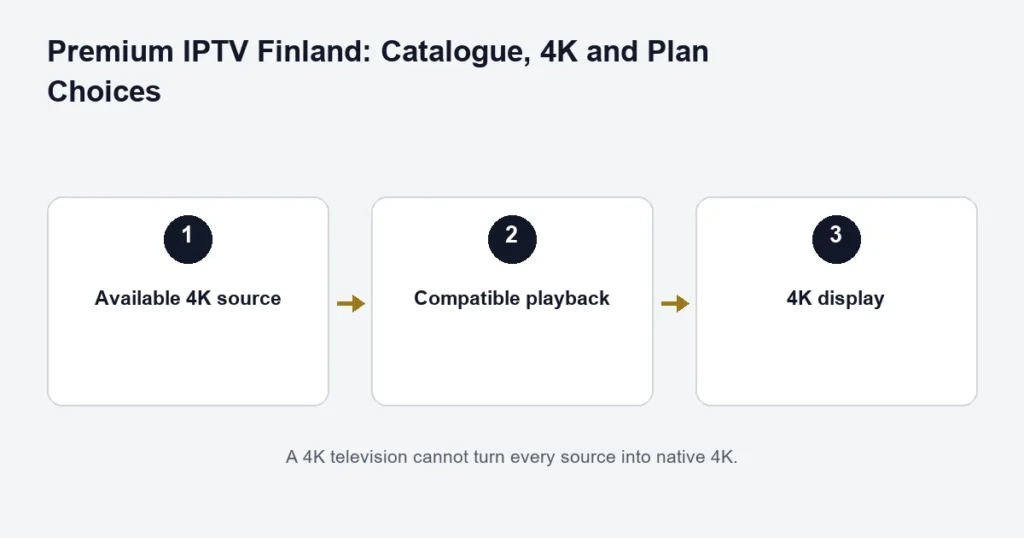
To watch native 4K, the programme source and the playback equipment must support it. IPTV Finland Premium lists “4K UHD available”; that wording does not mean every live channel or on-demand title is 4K.
Four places resolution can be limited
- Source: confirm the exact programme or feed is available in 4K.
- Player: check that the installed edition supports the stream format.
- Device: confirm the box or TV can decode and output that format.
- Display path: check the TV input and any HDMI receiver or cable in between.
Apple’s 4K and HDR guidance illustrates why the TV input, receiver and HDMI connection matter. HDR is a separate capability; a 4K resolution label alone does not establish HDR support.
Test a problem without changing everything
If Full HD plays but one 4K source fails, note the source, player version and device model. Compare another available source and a wired connection where practical. Do not invent a universal speed threshold: the stream and local network conditions affect the requirement.
Check the full Premium feature list before paying for a tier based only on resolution. For hardware questions, start with device compatibility. The pricing selector shows the term amount for your chosen allowance.
Follow the picture from source to screen
Think of 4K playback as a chain. The selected programme needs an appropriate source, the player must handle it, the streaming device must output it and the display must accept it. If a receiver or soundbar sits between the device and television, that connection is part of the chain too.
A 4K television badge answers only the display question. It does not describe the channel you selected or the app running on an older external box. Conversely, a 4K-capable box cannot make a Full HD panel display more native pixels. Identify each part before changing the subscription or buying a cable.
Resolution is different from HDR and smooth motion
Resolution describes picture detail. HDR capability and motion presentation are additional questions. Do not treat them as interchangeable labels. A sports viewer may notice motion problems even when a picture is labelled 4K, while a film viewer may be comparing a different aspect of image quality.
Apple’s 4K and HDR setup guidance gives an example of why the television input and connected equipment matter. Use documentation for your own device rather than copying every Apple TV setting to an unrelated player.
Check the source before troubleshooting the television
- Identify the exact channel, film or episode.
- Confirm the source is supplied in the intended quality.
- Check the player and device information available for that stream.
- Inspect the display input and output settings using the equipment manual.
- Compare another available source on the same setup.
- Record the difference before changing another component.
If only one source looks soft, avoid assuming every component is faulty. If every source has the same limitation, the common playback path deserves attention. A clear comparison can prevent unnecessary purchases.
When the player opens but the video does not
Record whether sound is present, whether the screen is black and whether a lower-resolution source plays. Those observations help distinguish a general login problem from a source or playback compatibility issue. Use the installation checks if the account itself has not loaded.
When playback starts and then buffers
Keep the test on the same device and programme while comparing the network arrangement. Stop unused streams and avoid downloading large files during a controlled check. Do not rely on one universal speed number: the source and local conditions affect the practical requirement.
Choose Premium for confirmed content
Premium lists available 4K, but that does not mean the full catalogue is 4K. Ask about the programme or type of content that prompted the upgrade. The Premium comparison covers catalogue and player benefits; this article is about getting the intended picture to the screen.
For movies, verify the release and language version as well as resolution. For sport, verify the event and commentary. A technically impressive source in the wrong language may not meet your household’s needs. The library guide and sports checklist cover those content-specific decisions.
Keep the equipment decision proportionate
Before replacing a television, find out whether the limitation is actually its panel, the connected box or the available app. An external device can change the app environment, but it cannot change the display’s native capabilities. The smart-TV route comparison helps separate those choices.
If you already have a working picture that suits your viewing distance, decide what improvement you expect before spending more. No particular hardware purchase or picture-quality outcome is guaranteed by this guide.
4K questions
Does the app’s 4K label prove the television receives 4K?
Use the available source and device information rather than relying on a label alone. Check the full output path and the selected input on the television.
Will selecting more connections improve resolution?
No. Connection count describes simultaneous streams. Tier features, source quality and hardware remain separate decisions.
Can the same account look different on two screens?
Different displays, players, selected sources and output settings can produce different results. Compare the same programme and record each setup before drawing a conclusion.
Should I force every display setting to its maximum?
Follow the equipment’s supported configuration. Changing several settings without checking compatibility can make a previously working picture fail. Record the original values and use the manufacturer guidance for the exact model.
What to include in a picture-quality enquiry
Name the source, device, player, display and any equipment connected between them. Describe whether the problem is detail, colour, motion, sound or buffering. Those specific observations help the next check address the actual symptom instead of treating every picture issue as a bandwidth problem.
Compare the same scene before drawing a conclusion
If you are evaluating two available picture options, keep the programme, display and viewing conditions as consistent as possible. A bright studio broadcast and a dark film scene are not a useful resolution-only comparison. Note the selected source label and output information where the device provides it. Describe whether the difference concerns fine detail, colour, motion or interruptions. These observations help separate the question you actually care about from a broad claim that one picture is better. Do not change several display processing settings while also changing sources, because the resulting difference will no longer identify which part of the setup affected the image.
Can changing the television mode affect the comparison?
A display can apply different picture processing in different modes. If you are comparing sources, keep that mode consistent and record any intentional change. Otherwise, an apparent source-quality difference may also include altered colour, sharpness or motion processing. Use the television’s own documentation to understand the setting rather than applying a universal recommendation. The useful result is a clear description of the source and output arrangement that produced the picture, not a claim that one maximum setting is appropriate for every programme and screen.